NVIDIA's NemoClaw is an open-source stack that puts OpenClaw agents inside sandboxed containers with kernel-level isolation. It's useful, but before you dive in, you should know what it actually is and what it isn't.
https://github.com/NVIDIA/NemoClawWhat NemoClaw is
- An add-on to OpenClaw, not a replacement. NemoClaw requires OpenClaw already installed. It wraps OpenClaw in a sandboxed container using NVIDIA's OpenShell runtime.
- A sandbox that restricts file access. Once inside, the agent can only write to
/sandboxand/tmp. Everything else is read-only or blocked entirely. - Linux only. Minimum 20 GB of free disk space and 8 GB of RAM. No macOS, no Windows.
What NemoClaw is not
- Not a way to use public LLMs. NemoClaw does not support OpenAI, Anthropic, or any non-NVIDIA model. The only models available are NVIDIA's own, including locally hosted NIM containers and their enterprise cloud endpoint. The model you'll use is
nvidia/nemotron-3-super-120b-a12b. - Not a standalone agent. It doesn't replace OpenClaw. It wraps it.
Prerequisites
For this guide, we'll use an AWS t3.large VM (2 vCPU, 8 GB RAM). The recommendation is minimum 4 vCPU, but it does run on 2 vCPU. I'll skip the AWS setup since Tropic does this with one click, but feel free to use any other VPS that meets the minimum requirements.
Step 1: Get your NVIDIA API key
Head over to NVIDIA and register for an account. Once you're in, go directly to build.nvidia.com/settings/api-keys, or you'll get lost in all the links. Generate a key and store it somewhere safe.
Step 2: Choose your inference endpoint
You have two choices: run the NVIDIA model locally on the same VM, or use the cloud model. Either way, go to the Nemotron deploy page.
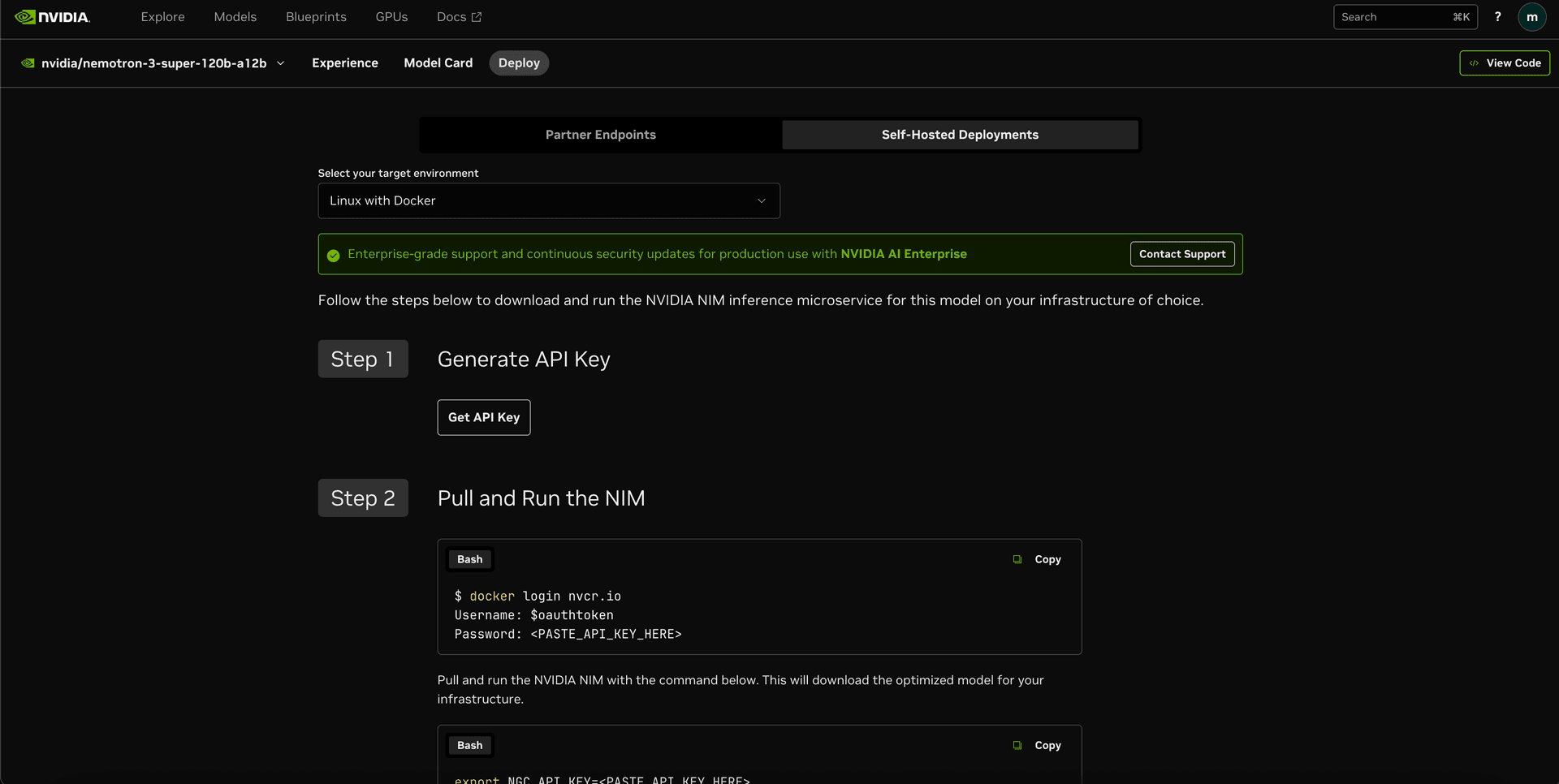
For ease, and since it's available, let's use the 90-day free enterprise cloud model. Otherwise you can follow the instructions on that page to run the local NIM container.
Step 3: Install NemoClaw
On your VM, run:
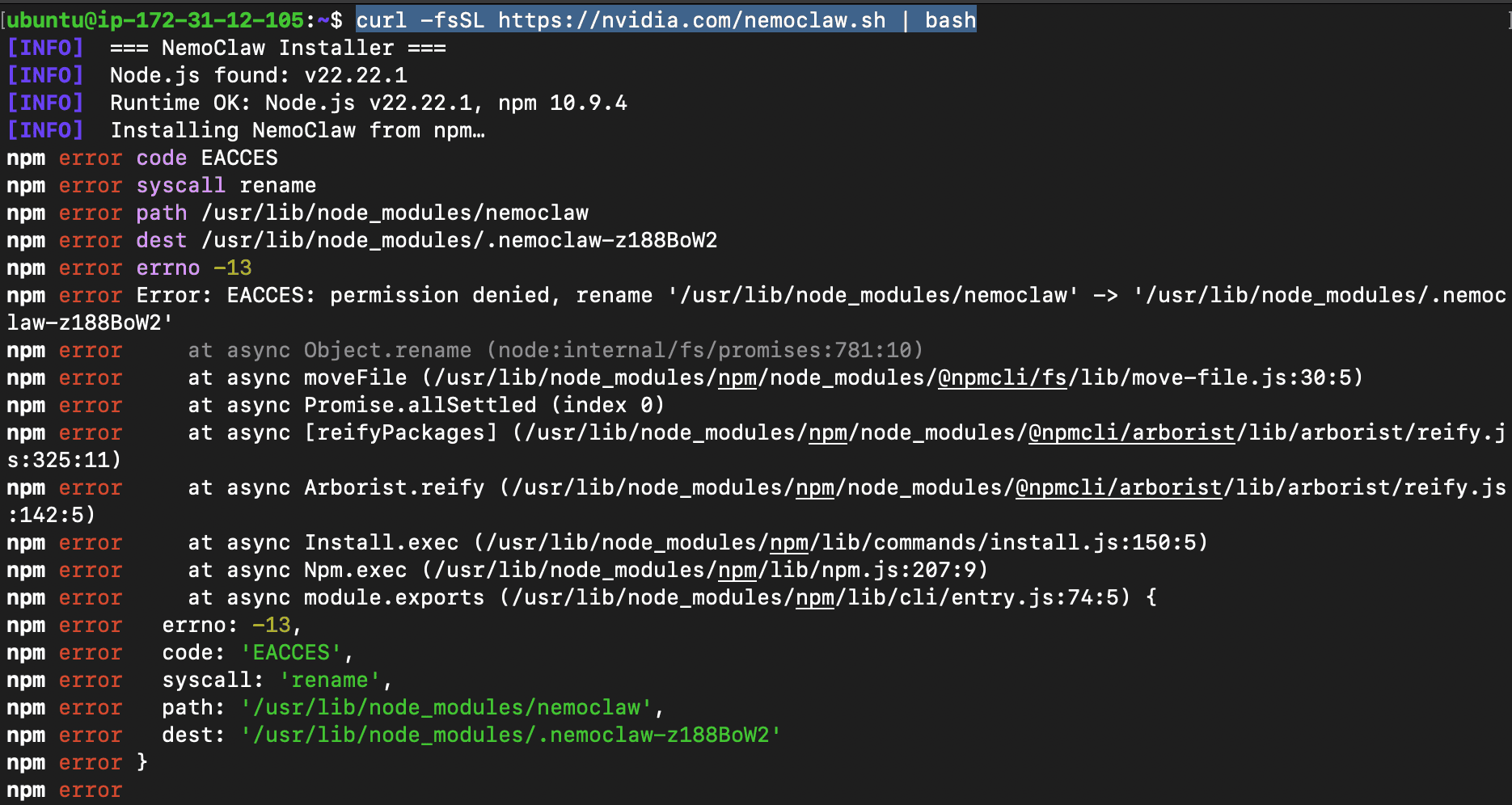
curl -fsSL https://nvidia.com/nemoclaw.sh | sudo bashNote the sudo. If you run the version from the NemoClaw repository without it, you'll hit this permissions error:
Step 4: Configure inference
During setup, you'll be asked for your NVIDIA API key. Paste in the key you generated earlier.
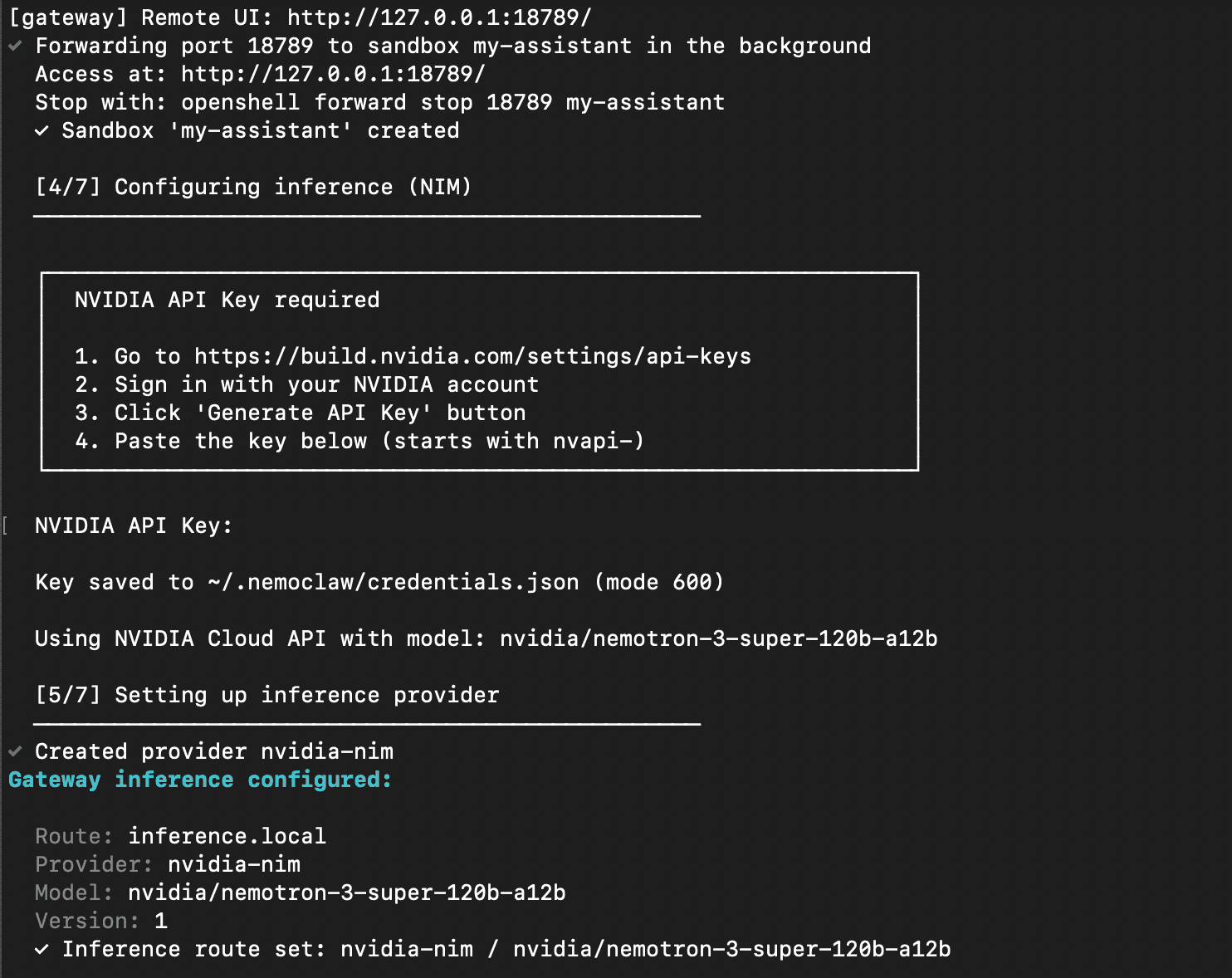
The rest of the prompts are straightforward. Follow along and accept the defaults.
Headless install (optional, advanced)
Experimental
If you want to run all this without interactive prompts (e.g. for AMI builds or automated provisioning), you can strip out the onboard step and run it separately. This is more advanced, so I don't recommend it unless you know what you're doing. I'm including it here to start you off.
curl -fsSL https://nvidia.com/nemoclaw.sh -o /tmp/nemoclaw-install.sh
sed -i 's/^  run_onboard$/  # run_onboard (skipped)/' /tmp/nemoclaw-install.sh
sudo bash /tmp/nemoclaw-install.sh
This installs NemoClaw without running the interactive onboard wizard. You'll need to configure the gateway, provider, and sandbox yourself using openshell commands from NemoClaw's scripts/setup.sh.
Step 5: Connect to your sandbox
In step 3 you were asked to give your assistant a name. I just pressed Enter, so mine is called my-assistant. Once the install completes, connect to the sandbox:
nemoclaw my-assistant connectThis drops you into the sandboxed environment with OpenClaw installed. Go ahead and run:
openclaw tui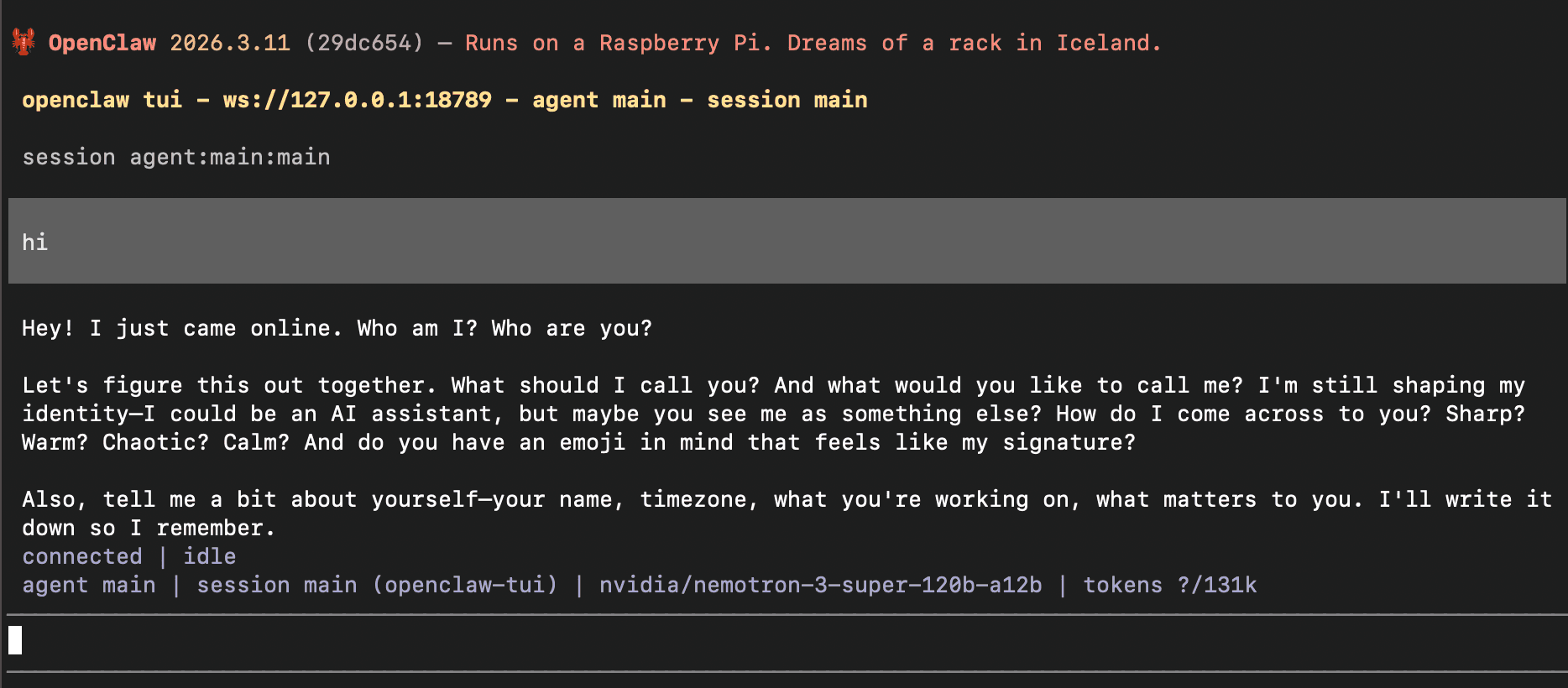
It took roughly 2 minutes to reply to my “hi” message, but subsequent messages were much faster. I assume there's a cold start involved.
What else is there?
That's it for the basic setup. But NemoClaw does ship with a terminal UI you can explore.
OpenShell Terminal
Run openshell term to get a dashboard view. It's a bit flaky at the moment.
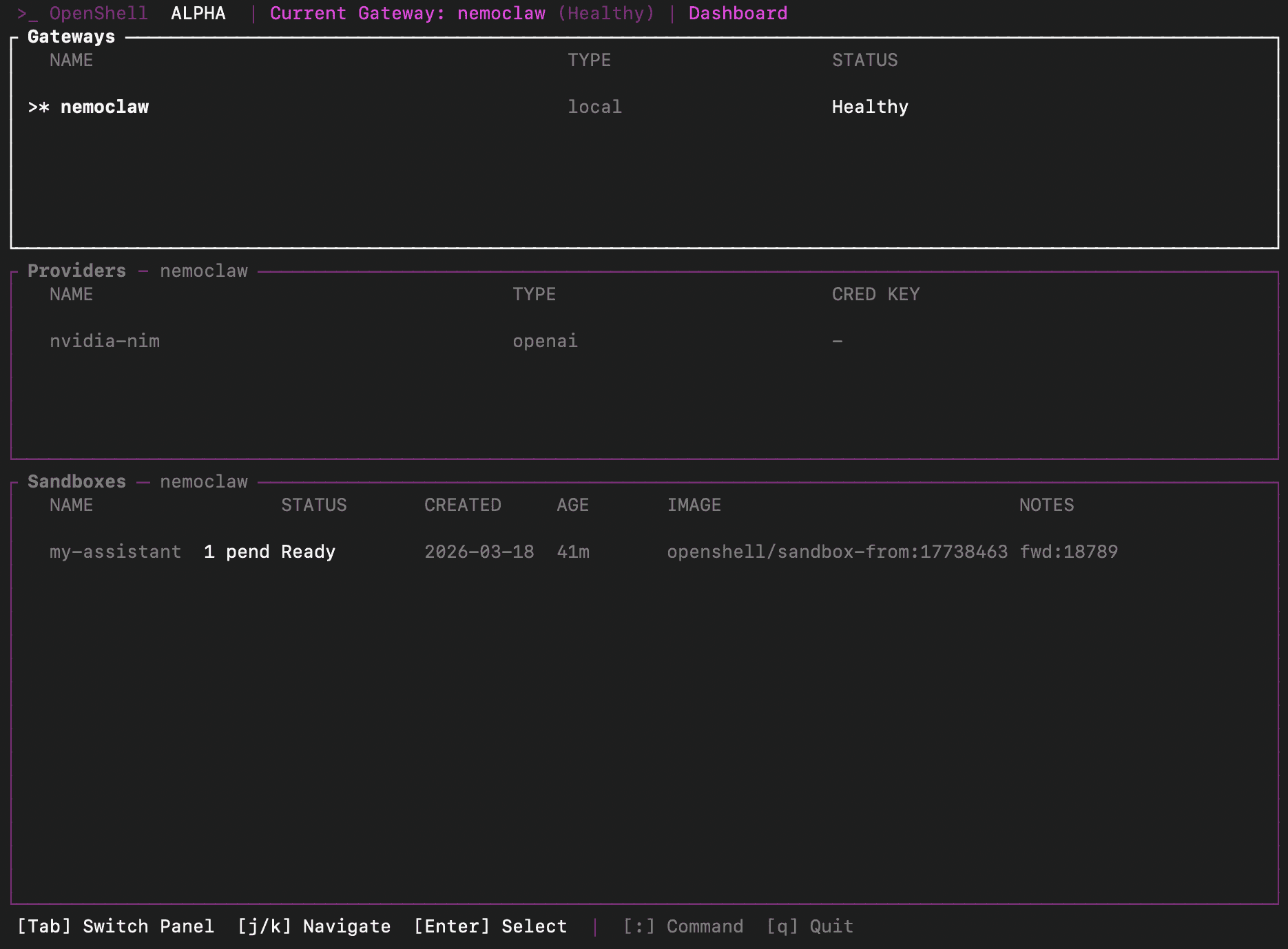
You navigate using Tab, and the interface is reminiscent of Vim. The second section (Providers) shows credential configuration, though you can't use OpenAI here, and entering credentials for it doesn't seem to do anything. In the third section (Sandboxes), you can create additional sandboxes with different names.
Policies
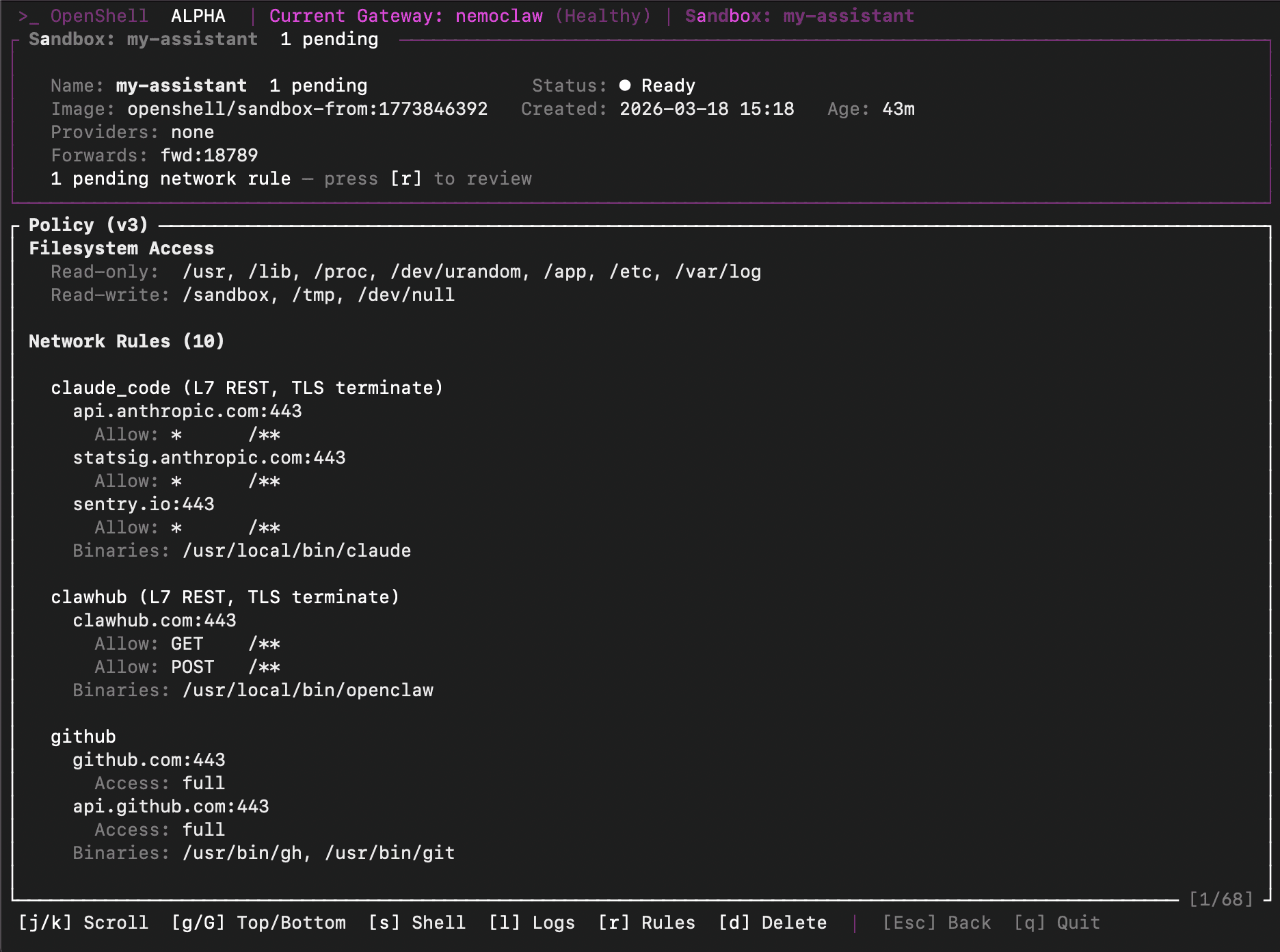
Press r in the sandbox view and you'll see the network rules. You'll notice most commands are marked as “allowed”.
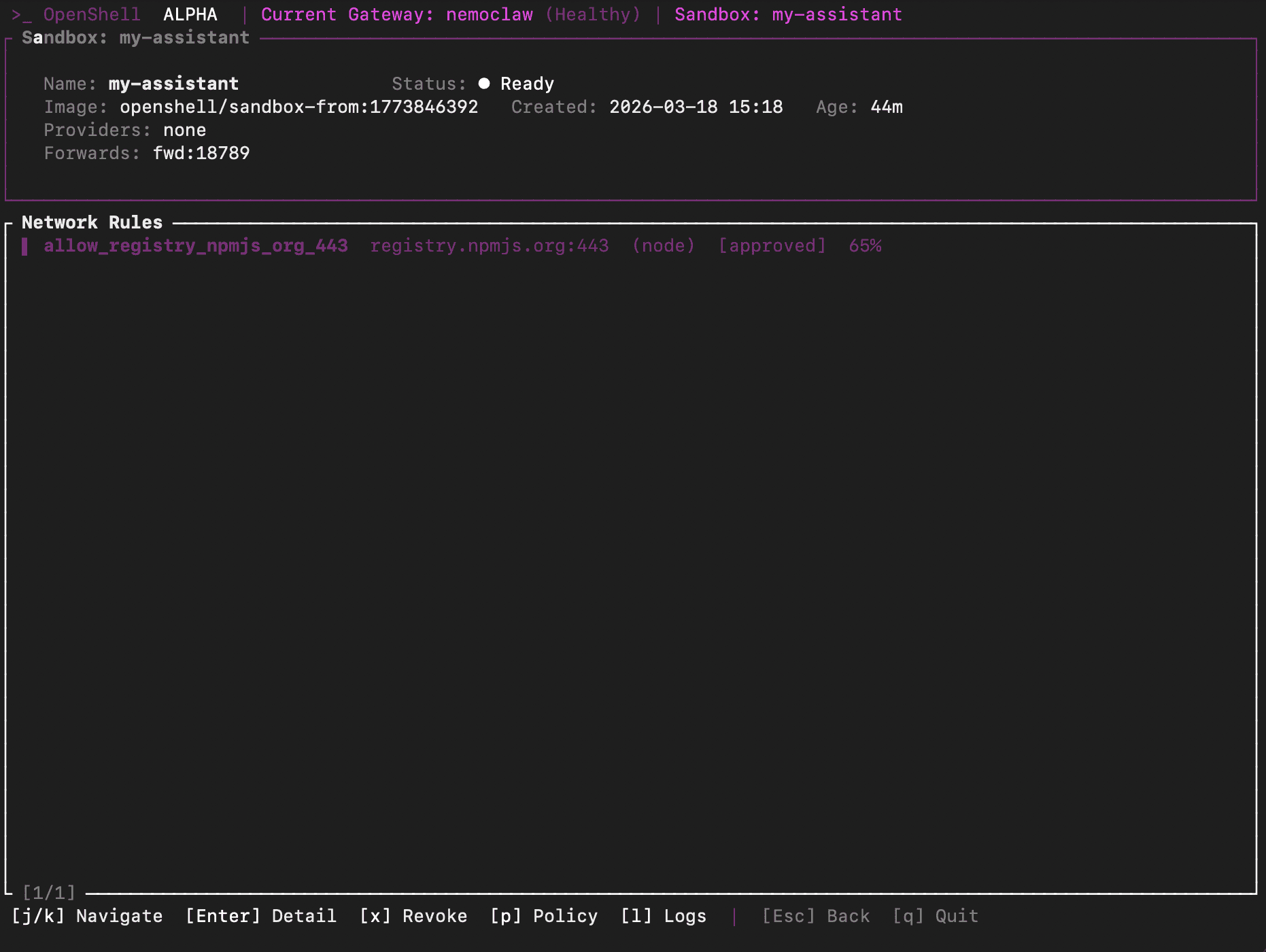
The rules you can actually control are limited. The only configurable one is whether the agent can install packages from the npm registry:
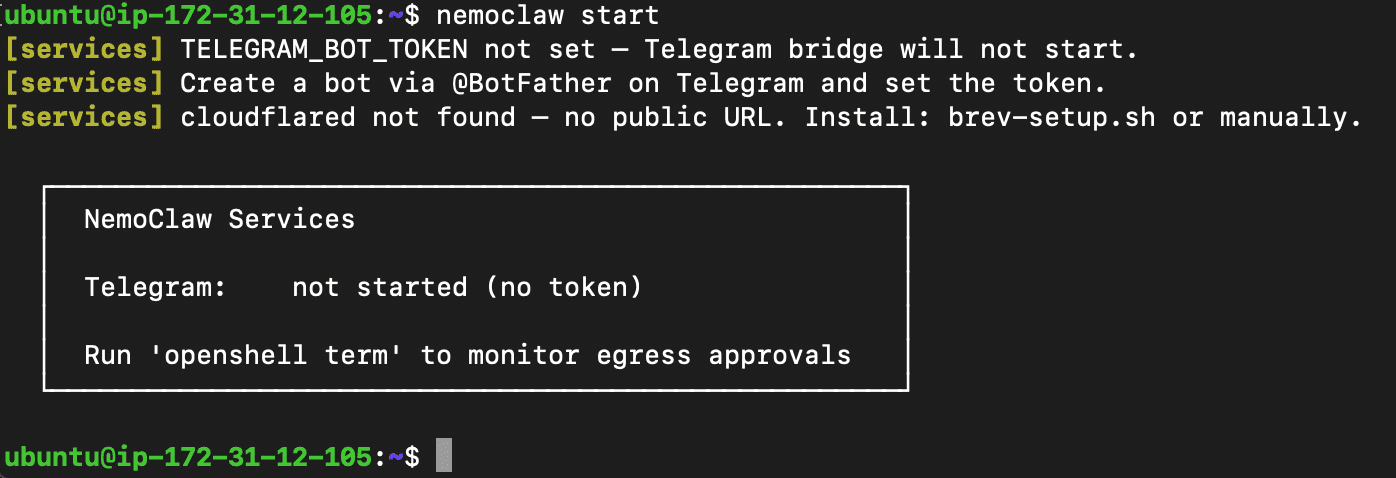
NemoClaw services
You can also run nemoclaw start, which I assumed would start a gateway. Instead, it looks like the only options are setting up a Telegram bridge and a Cloudflare tunnel.
Editing the network policy
The policies you saw in the TUI are defined in a YAML file. On your VM, you'll find it at:
$(npm root -g)/nemoclaw/nemoclaw-blueprint/policies/openclaw-sandbox.yamlEach entry in network_policies controls which hosts the sandbox can reach, which HTTP methods are allowed, and which binaries can make those requests. For example, to let the agent call the Slack API:
network_policies:
  # ... existing policies ...

  slack:
    name: slack
    endpoints:
      - host: api.slack.com
        port: 443
        protocol: rest
        enforcement: enforce
        tls: terminate
        rules:
          - allow: { method: GET, path: "/**" }
          - allow: { method: POST, path: "/**" }
      - host: hooks.slack.com
        port: 443
        protocol: rest
        enforcement: enforce
        tls: terminate
        rules:
          - allow: { method: POST, path: "/**" }
NemoClaw ships with ready-made presets for common services (Slack, Jira, Discord, npm, PyPI, Docker, Telegram, HuggingFace, Outlook) in the policies/presets/ directory. You can copy entries from those into the main policy file.
There are two ways to apply changes:
- Static (permanent): Edit the YAML, then recreate the sandbox by running
nemoclaw onboardagain. The new policy takes effect on the next sandbox creation. - Dynamic (session only): Save your policy additions to a separate YAML file and run
openshell policy set my-policy.yaml. This applies immediately to the running sandbox but resets when it stops.
The filesystem policy (filesystem_policy in the same YAML) controls read/write access. By default: read-write on /sandbox and /tmp, read-only on /usr, /lib, /etc, and a few others. This is locked at sandbox creation and can't be changed dynamically.
Wrapping up
NemoClaw is still in alpha, so I expect things not to work. The sandbox isolation doesn't add too much. It introduces a concept of policy controls which isn't foreign to OpenClaw but it's a bit more front and center. The lack of support for non-NVIDIA models is fine for a first cut.
If you want NemoClaw's sandbox isolation without the manual setup, Tropic supports NemoClaw as a runtime option. Select it when provisioning a cloud VM and the gateway, provider, and sandbox are configured automatically.
Skip the manual setup.
Tropic provisions NemoClaw VMs with one click: sandbox, inference, and policies configured out of the box. Plus you get credential management, audit logs, and a dashboard.